
Map your drive like a pro
SINGAPORE — Who has not used Google Maps to help them get from one place to the next? The fact that it is free also means you do not have to spend money on a GPS unit. Fact is, there are many Google Maps shortcuts that can help you become a true map master. Here are some of them.
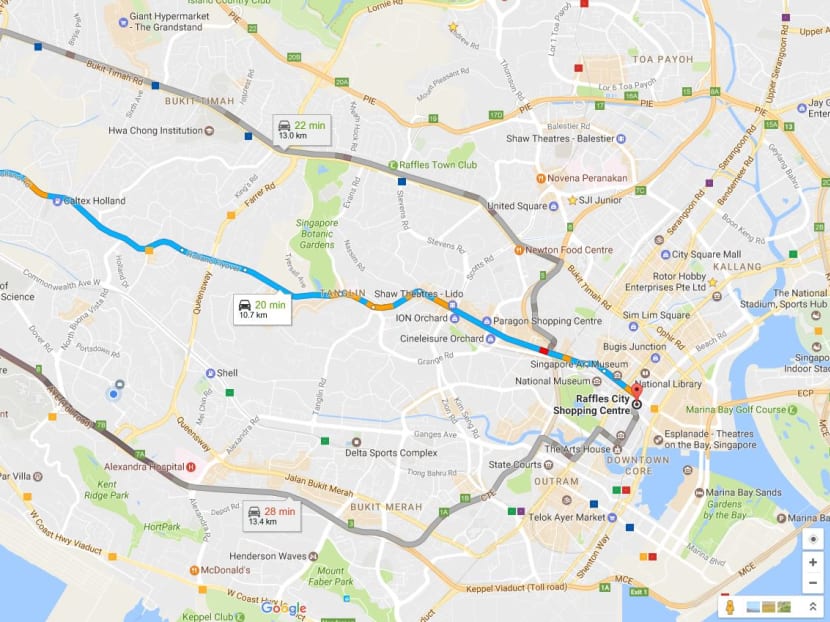
Knowing how to maximise the various functions on Google Maps can make for a smoother, stress-free drive. Photo: Google Maps
SINGAPORE — Who has not used Google Maps to help them get from one place to the next? The fact that it is free also means you do not have to spend money on a GPS unit. Fact is, there are many Google Maps shortcuts that can help you become a true map master. Here are some of them.
USE STREET VIEW. Sure, you can see where you are going on the map, but if you want to see what your destination really looks like, you will want to turn to Street View’s 360-degree photo spread, although not every place is covered. On the computer, you can drag the little yellow person icon (“Pegman”) from the bottom of the screen and drop it anywhere on the map. On your mobile, you can drop a pin by holding down anywhere on the map.
AVOID ERP GANTRIES. Toll roads can save you time, but if you want to save a couple of dollars, just tap the “…” icon on your phone and hit “Route Options” and “Avoid toll roads” to find a route that will skip any roads with tolls, as well as routes with highways.
TIME YOUR JOURNEY. Google Maps can estimate how long it will take to drive somewhere, but it can also help you plan for traffic situations too. On your computer, enter a destination and see the routes, then click “Leave now” and navigate to “Depart at” instead. Enter when you want to leave, and Maps will give you an estimate for that timeframe. Alternatively, pick “Arrive by” to figure out when you should leave home.
ADD EXTRA STOPS. Getting from point A to point B is great, but if you are on the road and decide you need to fuel up on petrol, you do not have to bail out on your navigation mid-trip. Just add in extra destinations by tapping the little vertical ellipsis on the upper right section, and then hit “Add stop”. You will get options for places to stop without leaving your ideal route.
SEND THE INFORMATION. If you sorted out directions on your computer before running to the car, you do not need to start over from scratch on your mobile device or car display. Simply sign into the same account on your mobile device, and then from your computer, click “Send to your phone” on a place listing, or “Send directions to your phone” when picking a route for navigation.
SHARE YOUR INFORMATION. One of Google Maps’ latest tricks is the ability to share your real-time location with any other Google user. You can share where you are at any given time. Just open up the side menu and pick “Share location”. If you are in navigation mode, tap the “…” button and choose “Share trip”.
A version of this story first appeared on Stuff Singapore.
Stay in the know. Anytime. Anywhere.
Subscribe to our newsletter for the top features, insights and must reads delivered straight to your inbox.
By clicking subscribe, I agree for my personal data to be used to send me TODAY newsletters, promotional offers and for research and analysis.